PAINT BY NUMBERS · PRACTICAL GUIDES
How to turn a photo into paint by numbers (free generator and kit guide)
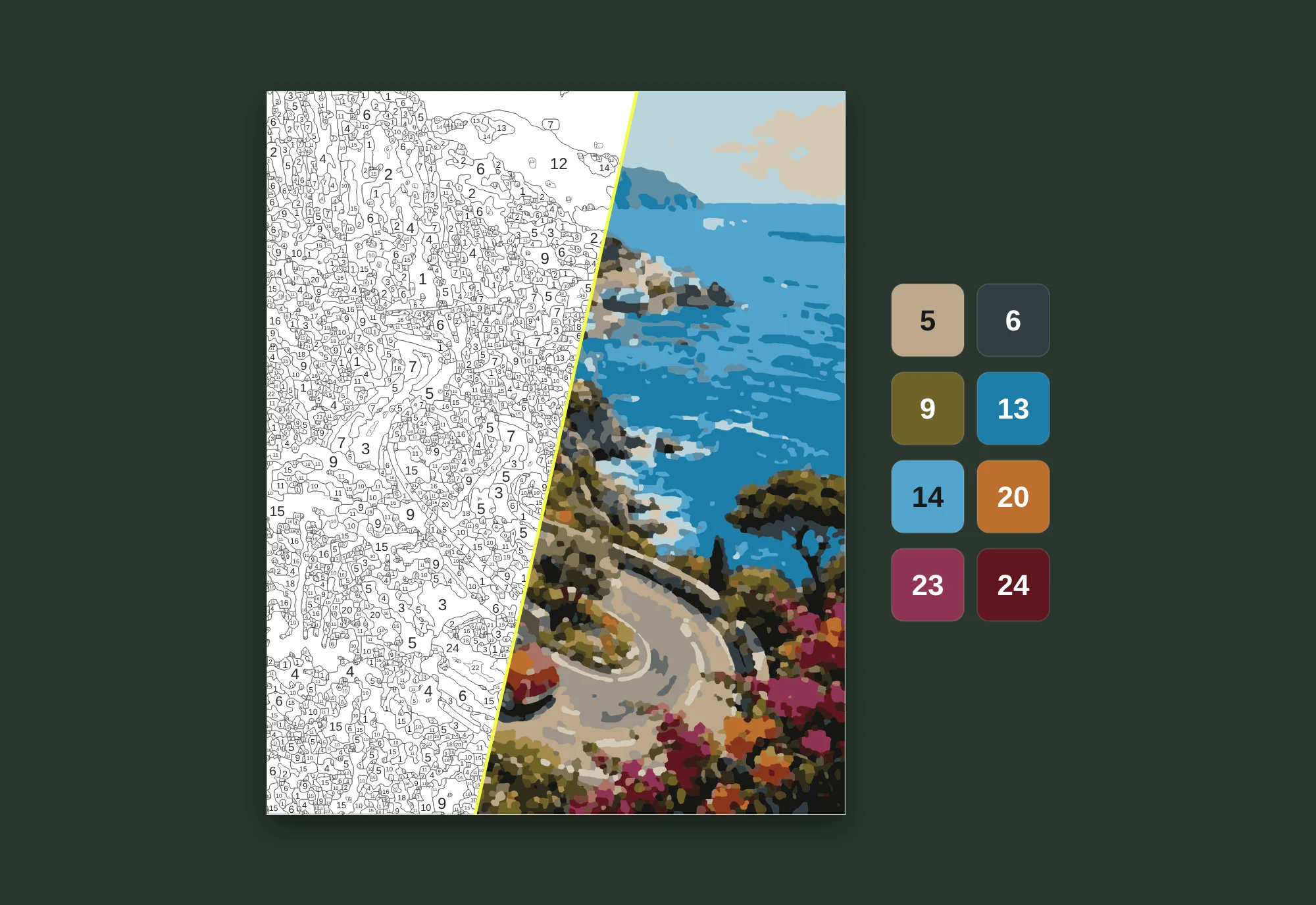
A favourite photo makes the best paint by numbers project, because you already love the picture. A generator turns it into numbered areas and a colour key, and you paint it on paper, canvas or a tablet. Here is how to do it well, how to pick the right number of colours and what to look for in a tool.
The short answer: four steps
You do not need design software. The whole process takes a few minutes, and most of it is choosing the photo.
- Pick a clear photo with one main subject and good light.
- Upload it to a paint by numbers generator such as our Paint by Numbers tool. The conversion runs in your browser, so the photo stays on your device.
- Choose how many colours you want. Fewer colours means bigger, easier areas. More colours means more detail.
- Download the numbered template and the colour key, then print it or open it in a drawing app.
Which photos turn into good paint by numbers
The generator groups similar colours into areas. Photos with clear shapes and steady light give clean areas you can actually paint. Busy, dark or blurry photos give hundreds of tiny specks.
Pets, portraits, travel scenes, houses and flowers work very well. Group photos work if the faces are large in the frame. Crop close to what matters before you upload.
- Use the largest version of the photo you have. 1,500 pixels or more on the long side is ideal.
- Daylight beats flash. Harsh shadows turn into hard dark patches.
- Avoid heavy filters and text overlays.
- If fur, grass or water looks noisy in the preview, raise the photo cleanup setting. It smooths texture into paintable areas without blurring the edges.
How many colours should you choose?
This is the choice that changes the result the most. The number of colours is also the number of paint pots you will mix or buy, so it is worth a moment of thought.
| Colours | How it looks | Best for |
|---|---|---|
| 16 to 24 | Bold, poster-like shapes. Large areas that are quick to fill. | Beginners, children, gifts you want to finish in a weekend. |
| 32 to 48 | Clear faces and recognisable textures. The classic kit look. | Most adults. A good balance of detail and calm painting. |
| 96 to 120 | Smooth gradients and fine detail that reads like the photo. | Experienced painters, big canvases and long projects. |
| Custom 10 to 150 | Exactly the count you want. | Matching a paint set you already own, or fine-tuning a tricky photo. |
Our Paint by Numbers tool offers all six levels (16, 24, 32, 48, 96 and 120) and a custom level from 10 to 150 colours.
Generator, hand-made template or canvas kit?
There are a few common routes from photo to painting, and each one suits a different person.
A basic online generator is fine for trying the idea: one printable page with a fixed number of colours. A hand-made template from a designer usually costs $11 to $15 and takes one to three days. A ready-made canvas kit arrives with paint and brushes, but usually costs $40 to $50, takes weeks to arrive and cannot be changed once it is printed.
A digital kit gives you the best of each: instant results, real choice over difficulty and files you can print at any size or paint on a tablet.
What to look for in a photo to paint by numbers tool
Most tools can turn a photo into numbered areas. The difference is in what you can do with the result. Here is how our Paint by Numbers tool compares with the typical alternatives.
| Feature | Journey Engine Paint by Numbers | Typical online generator | Typical canvas kit |
|---|---|---|---|
| Photo stays on your device while it is converted | Yes | Sometimes | No |
| Choice of difficulty | 6 levels from 16 to 120 colours, plus your own count from 10 to 150 | One setting or a small range | Usually 24, 36 or 48 colours |
| Live preview before you download | Yes | Yes | Usually a single preview |
| Print-ready file that stays sharp at any size | Vector PDF | Usually a standard PDF or image | Printed canvas only |
| Line styles | Classic, colour hint and faint | One | One |
| Colour key with HEX and RGB codes | Yes | Sometimes | Paint pots instead |
| Layered PSD for Procreate, sized for your iPad | Yes | No | No |
| Tap-to-paint Procreate palettes | Yes | Rarely | No |
| SVG files for desktop apps and print shops | Yes | Sometimes | No |
| Progress tracker and step-by-step guide | Yes | No | Printed instructions |
| Commercial use for your own designs | One-time $5 add-on | Rarely, or on a monthly subscription | No |
| Price | Free preview and free 16 and 24 colour downloads. Kits from $3.99, everything for $9.99 | Free, with paid plans for more | Usually $40 to $50 |
| Ready to use | Instantly | Instantly | Days to weeks |
Features vary between tools. This table describes what is typical, so check the details of any tool you consider.
Why we built our own
We make paint by numbers for a living, and we built our Paint by Numbers tool on the same production process we use for our own paintings. Here is what that means for you.
- Your photo is converted on your own device. It is never uploaded to make the template.
- You choose from six tested levels or set your own colour count from 10 to 150.
- Every kit includes a true vector PDF, so the template stays sharp at any print size, from A4 to a large canvas.
- Three line styles: classic, colour hint and faint. Faint lines disappear under paint for a cleaner finished piece.
- The Procreate pack gives you a layered PSD sized for your iPad model, with tap-to-paint palettes that match the numbers.
- One payment per photo, no subscription: kits from $3.99, or everything for $9.99. Repeat downloads for that photo are included.
- Need to sell what you make? Commercial use for a design is a one-time $5 add-on, not a monthly plan.
Painting your photo on an iPad
Digital painting is the fastest way to enjoy a custom template: no paint to mix, no drying time and unlimited undo. In Procreate you can drag a colour into an area and it fills right up to the outline.
A flat PNG works, but a layered file is much easier. Our Procreate pack has the line art, numbers and a separate layer to paint on, so the outlines and numbers stay crisp however much you paint. The kit guide walks you through importing it and loading the palettes.
Procreate is a trademark of Savage Interactive Pty Ltd. iPad is a trademark of Apple Inc. Journey Engine is independent of both.
Printing it for paper or canvas
Print the PDF at 100 percent or choose Fit to page. Thick matte paper of 200 gsm or more takes acrylic paint well. For a canvas, take the PDF to a print shop and ask for it on canvas or on paper you can transfer.
Print the colour key too. Each number lists its HEX and RGB values, so you can mix matching paints or pick them in a paint shop.
Questions people ask
Can I turn a photo into paint by numbers for free?
Yes. With our Paint by Numbers tool you can preview your photo and download the 16 and 24 colour levels free with an account. Full kits with more levels and files start at $3.99.
What makes a good paint by numbers generator?
Look for a live preview, a choice of difficulty levels, a print-ready file that stays sharp at any size and files you can use on a tablet. Our Paint by Numbers tool has all of these from $3.99, and your photo stays on your device while it is converted.
How many colours should a custom paint by numbers have?
Most adults enjoy 32 to 48 colours. Choose 16 to 24 for a quick, relaxing project or for children, and 96 to 120 if you want the result to look close to the photo.
Is it safe to upload my photo?
With our tool the template is made in your browser, so your photo is not uploaded to create it. If you buy a kit we keep a small preview in your account so you can find the kit again.
Can I use a paint by numbers template in Procreate?
Yes. Any PNG works, but a layered PSD is easier. Our Procreate pack includes a layered PSD sized for your iPad model and matching palettes.
Can I sell paintings made from my template?
Only if the licence allows it. Our kits are for personal use, and a commercial licence for a design is a one-time $5 add-on. You must also own the photo or have permission to use it.
Digital template or physical kit: which is better?
A physical kit arrives with paint and canvas, but it usually costs $40 to $50, you wait for it and you cannot change the design. A digital template is instant, and you choose the size, the difficulty and the paints. If you want a canvas, print the template on canvas at a local print shop.
PUT IT INTO PRACTICE
Turn your photo into paint by numbers.
Upload a photo, preview it as a numbered template and download the easy levels free. Your photo is converted on your device.
Open Paint by Numbers →