How to paint a high-detail mystery mosaic without losing your place
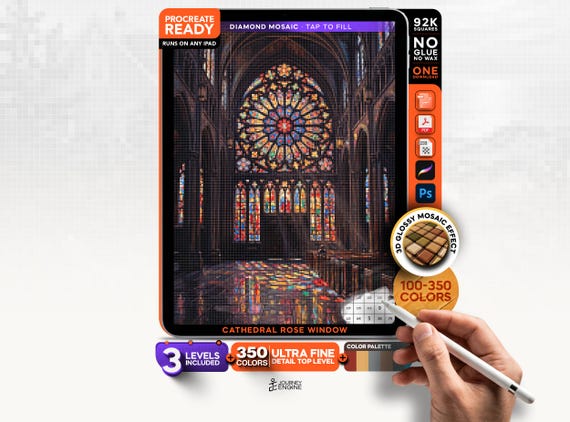
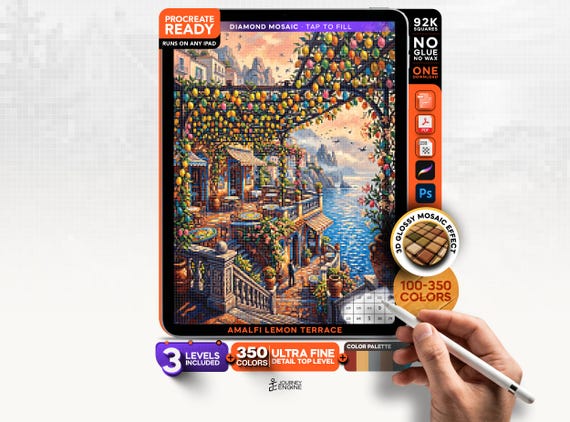
Our ultra-fine 350-colour level is the whole point for a lot of people. Roughly 92,000 individually numbered squares, so much detail that the hidden picture stays genuinely hidden until you are well into it. It is also the level where two very ordinary problems show up: it is easy to lose track of exactly which squares you have already filled, and it is easy to tap the wrong square once you are zoomed in far enough to actually see them clearly. Neither problem is about skill. Both come down to pacing and zoom habits, and both are easy to fix once you know what to change.
The short answer
Work one block at a time instead of hunting across the whole canvas, keep your zoom level consistent while you are inside a block, and use Procreate's own gesture to snap back to your last view instead of eyeballing where you stopped. Start a design on the 100 or 220-colour level to learn its layout before attempting the 350-colour version of the same picture.
Why the detail that makes it satisfying also makes it tricky
A 100-colour grid has large, forgiving squares. You can see most of the canvas at once, tap accurately without zooming much, and it is fairly obvious at a glance what is left to do. Push the same design to 350 colours and the squares shrink dramatically, both because there are more of them and because the extra colour range needs finer regions to render properly. That is exactly what produces the crisp, photographic look the ultra-fine level is known for, but it also means you can no longer see the whole canvas and work accurately at the same time. You have to zoom in to place colour precisely, which means you can only ever see a small part of the grid at once.
Pick the right level before you start
Every design in our Diamond Painting collection ships with all three levels in one download, which makes it tempting to jump straight to 350 colours on your first attempt. We would not recommend that. Paint the same design at 100 colours first, even quickly, and you will already have a rough mental map of where the major shapes and colour blocks sit before you ever open the fine grid. That map is what actually prevents you from getting lost once the squares get small. If you already know a design well, or you are simply confident with dense grids, starting straight at 220 or 350 is fine. The point is to have some map in your head before you are navigating one 4-pixel square at a time.
Work in blocks, not by hunting
A pacing method that holds up on the ultra-fine level
- Divide the canvas into a mental grid of large blocks, roughly the size of one comfortable zoomed-in view each. Think in terms of "top left quarter," not individual squares.
- Pick one block and stay there until it is genuinely finished, rather than jumping around chasing whichever colour is currently loaded. Jumping around is the single biggest cause of missed squares.
- Keep your zoom level fixed while inside a block. Zooming in and out repeatedly while you work makes it much harder to tell what you have and have not covered, because the same gap looks different at different zoom levels.
- Check the block at a slightly wider zoom before moving on. Pull back just enough to see the whole block at once and scan for any square that still shows the printed number instead of colour.
- Move to the next adjacent block, so your finished area grows outward in one direction instead of being scattered across the canvas in patches.
Keeping your place between sessions
The other half of the problem is picking up again after a break. On an iPad this is easier than it sounds, because Procreate remembers exactly where your canvas was zoomed and positioned when you closed the app, so reopening the file drops you back into the same view rather than a zoomed-out overview of the whole grid. Before you stop for the day, it helps to zoom back out one level and take a quick screenshot of the canvas, purely as a visual reference for yourself, so you have an instant reminder of which block you were mid-way through the next time you sit down. That one habit does more for continuity than anything else in this list.
When to zoom all the way out
Every few blocks, it is worth pulling all the way back to see the full canvas at once. This is less about checking for mistakes and more about motivation: on a 92,000-square grid, progress at the zoomed-in level can feel painfully slow even when you are moving steadily, and seeing the actual picture start to emerge from a distance is what keeps the ultra-fine level feeling worthwhile instead of tedious. It is also the fastest way to spot a whole block you accidentally skipped, which is much easier to see from a distance than square by square.
If you want the wider setup, including which apps work and how to avoid the white-halo problem on a fresh canvas, our guide to digital paint by numbers on iPad covers the app side in more detail. And if you are still deciding whether digital is right for you at all, we have written honestly about what going digital actually changes versus physical diamond painting.
Browse the Diamond Painting collection
53 designs, three difficulty levels each, up to 350 ultra-fine colours and roughly 92,000 squares on the hardest level.
Browse Diamond Painting →What zoom level should I actually paint at?
Close enough that individual squares are clearly separated and easy to tap accurately, but no closer than that. Zooming in far past what you need just shrinks how much of a block you can see and check at once.
Apple Pencil or finger, which is more accurate on small squares?
Apple Pencil generally gives more precise taps on very fine grids, since it registers a smaller contact point than a fingertip. A finger works fine on the 100 or 220-colour levels, where the squares are larger.
Should I finish one colour everywhere before moving to the next?
We would not recommend it on the ultra-fine level. Chasing one colour across the whole canvas means constantly re-zooming and re-orienting yourself, which is exactly what causes missed squares. Working block by block, using whichever colours that block needs, keeps your position clear.
How long does the 350-colour level actually take?
It depends heavily on pace and session length, but expect considerably longer than the 100-colour version of the same design, simply because there are far more squares to fill. Working in steady blocks rather than jumping around tends to get you there faster than it feels like it will.
Can I pause for days or weeks without losing my place?
Yes. The file keeps every square you have filled exactly as you left it, and Procreate reopens to your last zoom and position. A quick screenshot before you close the app is a useful extra reminder, but the file itself does not lose progress.
Does the app tell me how much of the grid is left?
Procreate itself does not track mosaic completion automatically, which is why the block method matters: working outward from a finished area, and periodically zooming all the way out to scan for skipped squares, is the most reliable way to know what is left.