How to print coloring pages at home
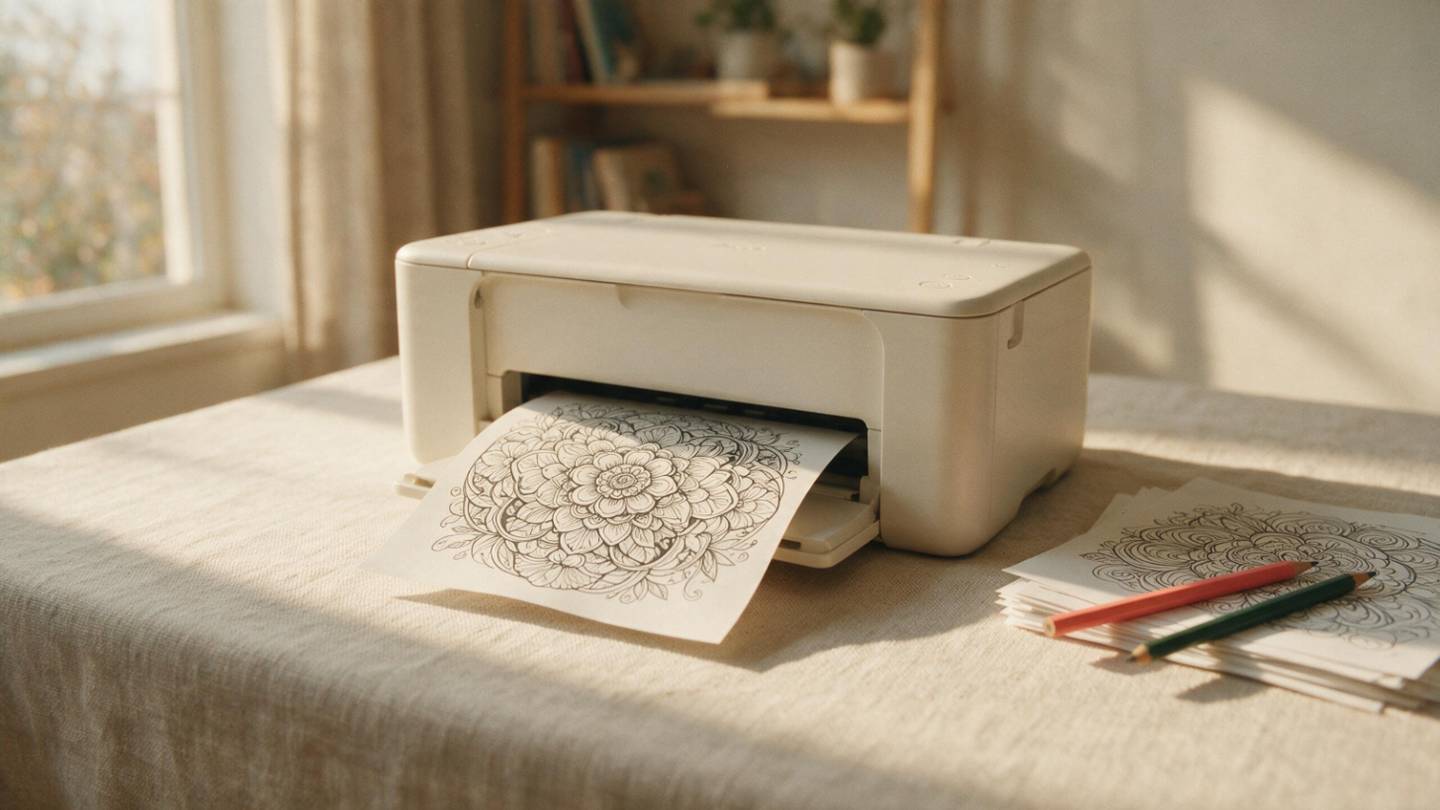
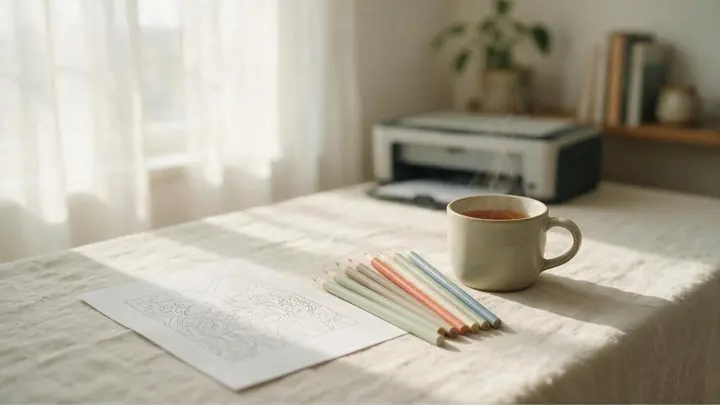
Almost every printing complaint about coloring pages comes down to one of four settings. Get those right once, save them, and the rest is just pressing print.
1. Turn off scaling
This is the big one. Print dialogs default to Fit to page or Shrink oversized pages, which quietly reduces your page by a few percent to fit inside the printer's margins. The result is a page with a thin white halo and slightly thinner line art than intended.
Set scaling to Actual size or 100% instead. In Adobe Acrobat, that is the “Actual size” radio button under Page Sizing & Handling. In Preview on a Mac, set Scale to 100%. In Chrome's built-in PDF viewer, expand More settings and set Scale to Default rather than Fit to printable area.
If you would rather lose nothing at all at the edges, look for Borderless printing in your printer's own settings — not all models have it, and it usually needs to be enabled per paper size.
2. Match the paper size to the file
A4 (210 × 297 mm) and US Letter (8.5 × 11 in) are close but not the same. Letter is wider and shorter. Print an A4 file on Letter at 100% and you lose a strip off the bottom; the other way round and you lose a strip off the side.
Good coloring page sets include both sizes — use the one that matches the paper in your tray, and make sure the paper size selected in the print dialog matches too. If you only have one version of the file and it is the wrong size for your paper, that is the one situation where you should use Fit to page: losing 3% of scale beats losing an inch of artwork.
Print PDF over PNG when you have the choicePDFs carry their own page size and margins, so they land correctly far more often. If all you have is a PNG or JPG, open it in a PDF-capable viewer or a word processor first, set it to fill the page, and print from there rather than from an image viewer.
3. Print in black only
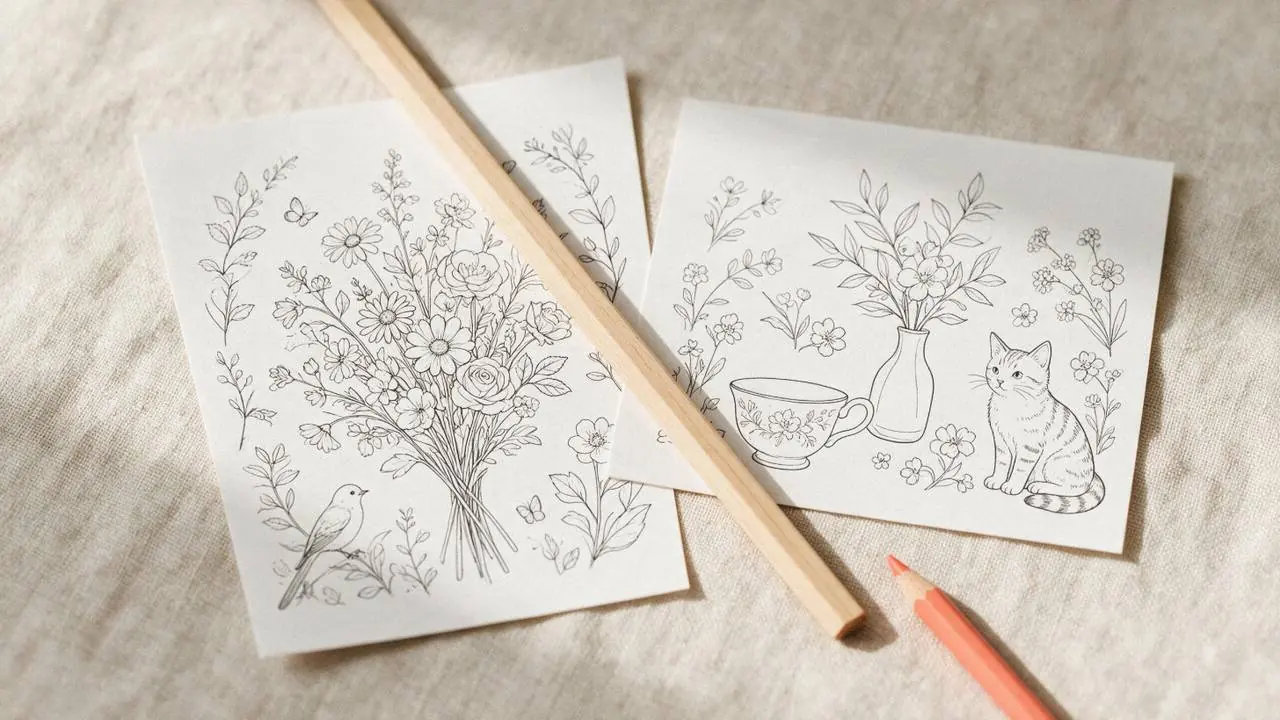
Line art is black. Left alone, most printers will happily mix your colour cartridges to produce it — which is why people run out of cyan printing pages that contain no cyan. Two settings to find:
- Grayscale / Print in black and white. Usually in the main print dialog.
- Black ink only or Use black cartridge only. This one lives in your printer's own properties dialog, often under a Colour or Quality tab, and it is the setting that actually stops the colour cartridges being touched.
Turning both on typically drops the cost per page noticeably and, as a bonus, gives you a cleaner black line than a composite mix does.
4. Choose the right quality setting
High or Best quality is meant for photographs. For line art it lays down more ink than the drawing can use, and on absorbent paper it can actually thicken and soften your lines.
- Draft / Fast — fine for simple, bold designs and for test prints. Uses the least ink by a wide margin.
- Normal / Standard — the right default for detailed mandalas and fine linework.
- Best / High — only if you are printing a greyscale or shaded page where tonal detail matters.
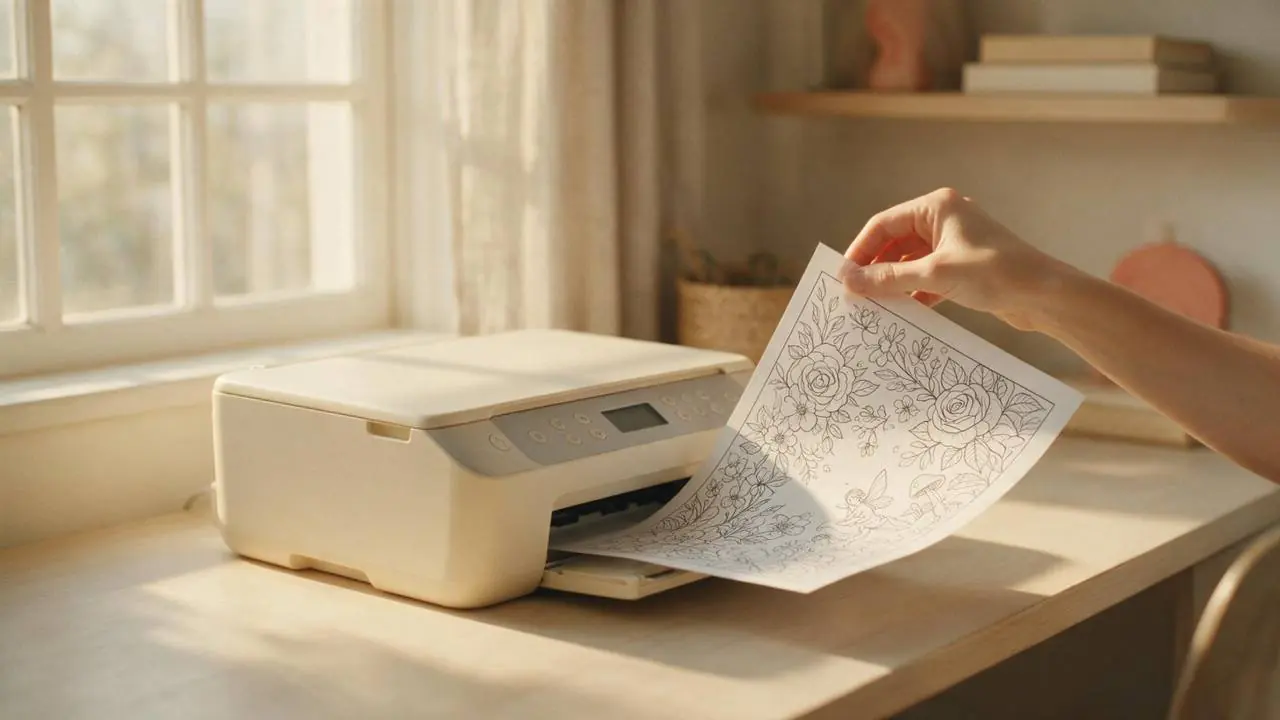
Cutting your ink use in half
- Black-ink-only plus Draft quality is the single biggest saving available, and on most coloring pages you will not see the difference once there is colour on the page.
- Always print one test page first when you open a new set. A wasted sheet beats a wasted twenty.
- Skip duplex printing. Two-sided pages bleed into each other with markers, and you can only ever display one side.
- Keep the printer's own Economy or Toner save mode in mind — it does much the same job as Draft on laser printers.
- If you print a lot, third-party or refillable ink is where the real money is. Just accept that some manufacturers make this deliberately awkward.
When something still looks wrong
- Edges cut off — paper size mismatch, or scaling set above 100%. Check both.
- Page came out smaller than the paper — Fit to page is still on somewhere. It can be set in the app and in the printer driver; turn it off in both.
- Faint or streaky lines — almost always a clogged print head rather than a file problem. Run a nozzle check and a head clean.
- Lines look grey rather than black — the printer is mixing colours. Turn on black ink only.
- Blurry, soft lines — you are printing a low-resolution file, or an image viewer has upscaled it. Print from the original download at its native size.
- Paper jams on cardstock — use the rear or manual feed tray if your printer has one, and load a few sheets at a time rather than a full stack.
Once the settings are right, save them as a printer preset. Every page you print after that is a single click, and your paper choice becomes the only decision left — which is covered in the best paper for printable coloring pages.
Pages worth the good paper
Detailed printable collections — deep sea, tarot, koi, Slavic folklore and more — sized for A4 and US Letter, yours to reprint forever.
Browse Journey Engine on Etsy →